
The perfect menu bar setup
Lately I've been coding more and more — or maybe "vibe-coding" is the more honest term — and a few of the things I've built have picked up real traction. That's a good problem to have, but it also creates a new one: I constantly want to know how things are doing.
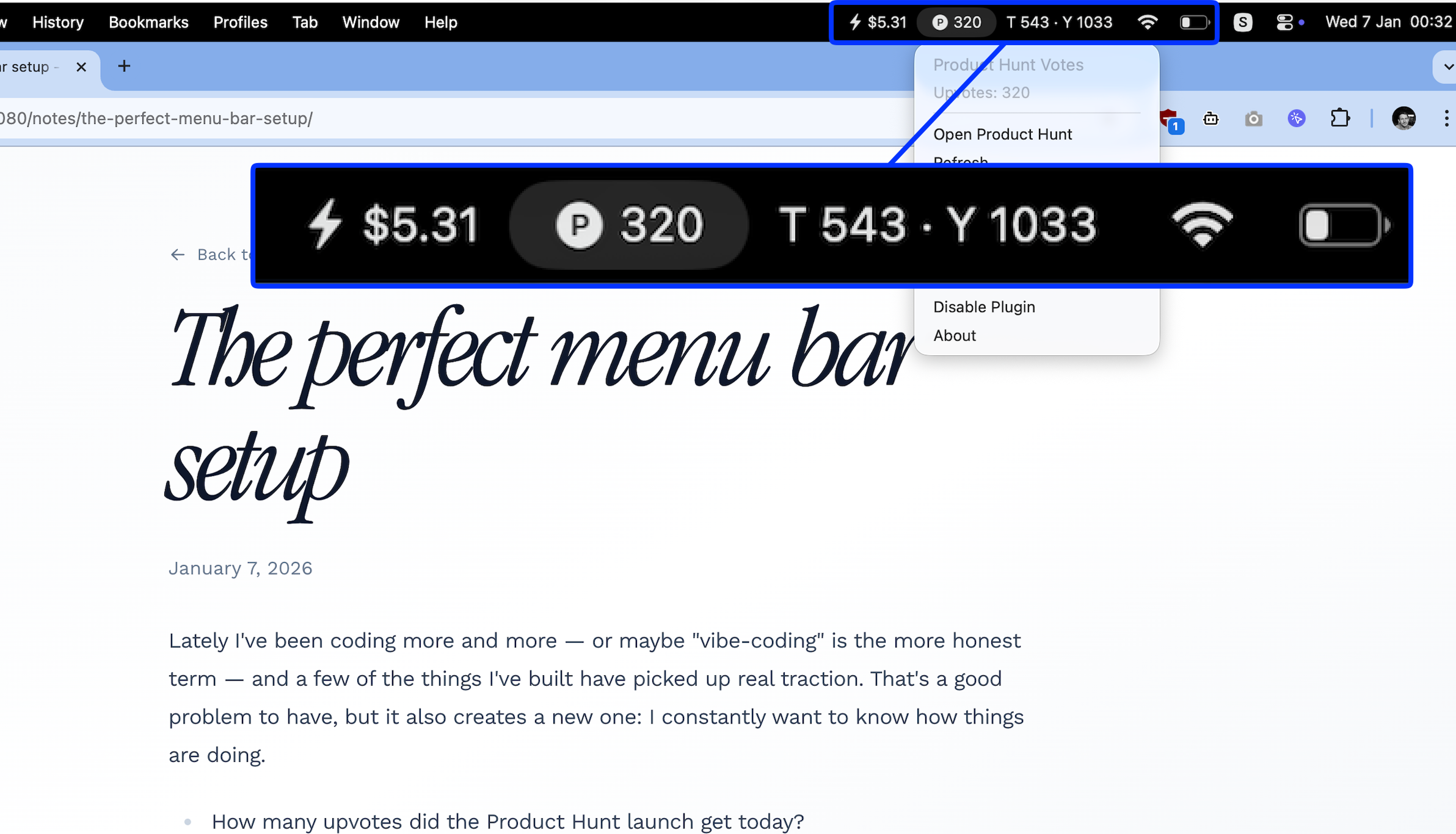
- How many upvotes did the Product Hunt launch get today?
- What does traffic look like across the last couple of projects?
- And for anything that runs on LLMs, how much credit do I still have left before things quietly stop working?
A few months ago, I tried to solve part of this by building a small macOS app whose only job was to show my remaining OpenRouter credit. OpenRouter exposes that information via a provisioned API key, so the data itself was easy to get. The hard part was everything around it: compiling with Xcode, dealing with signing, and debugging issues that had nothing to do with the actual problem I wanted to solve. Even using claude-code, it still took days, and the result was fragile.
Recently, I stumbled onto SwiftBar, and it immediately clicked.
If you haven't used it before, SwiftBar lets you add tiny bits of information directly to your Mac's menu bar by running simple scripts, usually Bash. Instead of shipping a full app, you ship a script that prints text. SwiftBar takes care of the rest.
Once I realized that, the whole setup collapsed into something much simpler.
For analytics, I now treat the menu bar as a read-only dashboard. For PostHog, I call their CLI directly and surface the numbers I care about. For OpenRouter, I wrote a very small script that shows my remaining credit and even lets me generate new keys, all without leaving the menu bar.
Product Hunt was a fun surprise. Their launch-based SVG badge includes the number of upvotes, which makes it trivial to keep an eye on momentum and get a rough sense of whether a launch might end up as Product of the Day.
This is the kind of setup that feels like perfect software to me: small, composable, and slightly hacky—exactly the kind of software for one.
If you want to try something similar, the setup is almost embarrassingly easy. Install SwiftBar, then ask your favourite AI CLI to generate a plugin for you. One practical tip is to run it directly inside the SwiftBar plugins folder so you can iterate quickly. Another is to keep your plugins in iCloud Drive, which gives you the same menu bar tools on every Mac you use without any extra work.
It's a tiny upgrade, but it turns the menu bar into a place where you can surface almost any data or utility you want, without needing a full app or a browser tab.